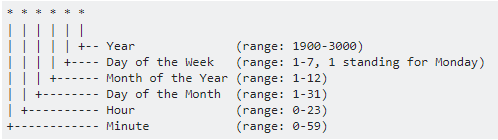
Other
-
含
\n的字串不能直接用 echo 去 base64, 先放到 file 裡面才不會直接被忽略 -
Install DNS tool
digapt-get install dnsutils -
Find and replace
sed -i -e 's/abc/XYZ/g' /tmp/file.txt
-
Check cpu / memory usage
kubectl exec -it pod_name -n namespace -- sh
# cpu usage
cat /sys/fs/cgroup/cpu/cpuacct.usage

# for memory usage
cat /sys/fs/cgroup/memory/memory.usage_in_bytes
## to MB
cat /sys/fs/cgroup/memory/memory.usage_in_bytes | awk '{ foo = $1 / 1024 / 1024 ; print foo "MB" }'
-
Clean zombie/defunct process
# do work
reboot

# grep all defunct
ps -ef | grep -i defun

# try killing
kill -9 27950
killall -9 defunct
-
Check connection TLS version
(check “Protocol :…” first then “New, …”)
$ openssl s_client -connect example.com:443

---
New, TLSv1.3, Cipher is TLS_AES_128_GCM_SHA256
Server public key is 256 bit
---
SSL-Session:
    Protocol  : TLSv1.2
---
-
ssh with grant permission
cp /mnt/c/xxx.pem ~/.ssh/.
chmod 600 ~/.ssh/xxx.pem
ssh -i ~/.ssh/xxx.pem azureuser@x.x.x.x
-
date format
date '+%Y-%m-%d %H:%M:%S'

# diff month`
date -d '-1 month' +'Last month was %Y/%m/%d?'
-
list folder by date
ls -lt
-
Get curent public IP
curl ifconfig.me
-
Unzip .gz
gzip -d xxx.gz
-
grep
-
helper
-
-F
-
plain text only, no wildcard and regex
-
-A{n}
-
print after {n} lines
-
-B{n}
-
print before {n} lines
-
-E , regex
-
grep: all files for string
-
-r, –recursive like –directories=recurse
-
-n, –line-number print line number with output lines
-
-i, –ignore-case ignore case distinctions in patterns and data
grep -r "texthere" .
grep -rni "string" *
-
Print memory and data
echo $(date --iso-8601=ns) $(free -k | grep ^M | awk -F' ' '{print $1","$2","$3","$4 }') >> /tmp/mem_report.txt
-
Be ware of multiple line command in
if then elsecondition
## example as follows: cat not working

if echo "400" | grep "200";
then
    echo "Passed"
else
    echo "Failed"
    curl -X POST 'xxx' \
    -H 'Content-Type: application/json' \
    -d "$(cat <<EOF
    {
        "test": "test",
    }
    EOF
    )"
fi
-
Curl to POST json data
export BASH_VARIABLE="[1,2,3]"
curl http://localhost:8080/path -d "$(cat <<EOF
{
  "name": $BASH_VARIABLE,
  "something": [
    "value1",
    "value2",
    "value3"
  ]
}
EOF
)" -H 'Content-Type: application/json'
-
Download certificate
echo -n | openssl s_client -connect $HOST:$PORTNUMBER -servername $SERVERNAME \
    | openssl x509 > /tmp/$SERVERNAME.cert
-
Unzip
# 1
tar -xf archive.tar.gz -C ./folder

# 2
gunzip file.gz
gunzip < file.tar.gz | tar xvf -
-
View file metadata
strings file.exe | egrep '^[0-9]+\.[0-9]+\.[0-9]+\.[0-9]+$'
-
Bash character
$ => variable
${} => separate variable in string
$() => run function inside then output to variable
(()) => could run basic +-x%
-
Test database SQL command
#!/bin/bash
echo Start Executing SQL commands
sqlplus <user>/<password> @file-with-sql-1.sql
sqlplus <user>/<password> @file-with-sql-2.sql
-
Check apt package version
apt-get -s install tesseract-ocr
-
Check pip package version
pip show Jinja2
-
Multiple line command. by “\”
docker run -d --name jaeger \
  -e COLLECTOR_ZIPKIN_HOST_PORT=:9411 \
  -p 5775:5775/udp \
  ...
-
Replace string with “sed”
# current file
sed -i "s/{{TargetStr}}/{{NewStr}}/g" deploy.yaml

# Expose to another file
sed "s/{{TargetStr}}/{{NewStr}}/g" deploy.yaml > new.yaml

# When including special charactor(e.g. /), use "|" instead.
sed -i "s|{{TargetStr}}|{{NewStr}}|g" deploy.yaml
-
[Bash] Enable error interrupting
set -e
-
Show datetime
$(date -d '-1 month' '+%Y-%m-%d')
## print: 2020-08-08
## Use \%  in crontab
-
Remove all files exclude specific file
find . ! -name 'file.txt' -type f -exec rm -f {} +

find . ! -name '2020*' -exec rm -f {} +
-
Linux file sharing
sudo npm install -g http-server
http-server -o
-
Filter string and column
| awk '/pattern/{ print $0 }'
# $0 all, $1 column 1, $2 column 2, ...
-
Make restful call and get response
curl -i https://xxx.com
-
Download GitHub release
wget --no-check-certificate --content-disposition https://github.com/joyent/node/tarball/v0.7.1

# --no-check-cerftificate was necessary for me to have wget not puke about https
curl -LJO https://github.com/joyent/node/tarball/v0.7.1

# Just download file
curl -OJ https://xxx.com/xxx.zip
-
Install mkpasswd
yum install expect
-
Install
yum install httpd-tools
-
Generate self-signed SSL cert
$ openssl req -x509 -nodes -days 365 -newkey rsa:2048 -keyout mykey.key -out mycert.pem
-
Check if script not existed and run
ps aux | grep "app/main.py" | grep -v grep
if [ $? != 0 ]; then
  python3 /srv/app/main.py
fi
-
Check if process existed
ps aux | grep "your_running_command" | grep -v grep
-
Append string to file
echo $'first line\nsecond line\nthirdline' >> foo
-
Get http status code
curl -I http://www.example.org
curl -v http://www.example.org    # -v == --verbose
-
Local mail box
/var/mail/{USER}
/var/spool/mail/{USER}
-
While loop infinity
while true; do echo hi; sleep 5; done
-
Print log to file by datetime
ls -al > output_$(date +"%m_%d_%Y")
-
Check the collected
-
yum 列出所有 package 可裝版本
yum list {{package}} --showduplicates | sort -r
-
Search file content (support .gz, regex co)
zgrep -inE '/api/v2.*disable' * # regex search all files
-
Search file or folder
find / -type f -name {{filename}}
-
yum search搜尋 package by keyword
yum search {{keyword}}
-
Install nodeJS
#delete if needed
sudo apt-get --purge remove node
sudo apt-get --purge remove nodejs
sudo apt-get install nodejs
#Use 'node' command rather than 'nodejs'
update-alternatives --install /usr/bin/node node /usr/bin/nodejs 10
-
Install pip3
sudo apt-get install python3-pip
-
Install nethogs (network usage)
apt-get install build-essential libncurses5-dev libpcap-dev
git clone https://github.com/raboof/nethogs
make && sudo ./src/nethogs
make install && hash -r && nethogs

# sudo make uninstall
-
Install htop
sudo yum install epel-release
sudo yum updatess

sudo yum install htop
-
Jupyter from .ipynb to .py
On the command line, you can use nbconvert:
$ jupyter nbconvert --to script [YOUR_NOTEBOOK].ipynb
As a bit of a hack, you can even call the above command in an IPython notebook by pre-pending ! (used for any command line argument). Inside a notebook:
!jupyter nbconvert --to script config_template.ipynb
-
發 url request and show the time
curl -o /dev/null -s -w "%{time_connect} + %{time_starttransfer} = %{time_total}\n" <YOUR_URI>-
“No package top available.
Error: Nothing to do"
# htop seems to be available in the EPEL repo. Try yum install epel-release, then yum install htop again.
yum install epel-release
-
About compressing: Zip, Unzip
# zip with hidden file (.htaccess)
sudo find . -type f -name '.*' -print | sudo zip newZipFile.zip -@


# zip all in folder
sudo zip -r  {ZIPNAME}.zip {FOLDER_PATH1} {FOLDER_PATH2} {FOLDER_PATH3} ...


# unzip to specific folder
sudo unzip {ZIPNAME}.zip -d {FOLDER_PATH}

# browser into zip file
unzip -l {{zipfile}}
less {{zipfile}}
vim {{zipfile}}
-
Install ssh for ubuntu
sudo apt-get install openssh-server

# Enable/Disable root
vi /etc/ssh/sshd_config
--
PermitRootLogin Yes
--

# (optional) Set allowed IP
vi /etc/hosts.allow
--
sshd:192.168.1.88:allow
--
vi /etc/hosts.deny
--
sshd:all:deny
--
-> then restart


# (optional) restart
sudo /etc/init.d/ssh restart
-
Install Remote GUI for Ubuntu
# xfce4
sudo apt-get install xfce4
## additional goodies
sudo apt-get install xfce4-goodies
-
Make shortcut to command
alias lc=long-command
About System
-
Auto apply ssh to linux: add empty
sshfile to root folder -
Find regex string not include by awk
XXXstring | awk '$0 !~/domain/{print $0}'
-
Cron Job will lost PATH
# Set the path back again
export PATH={$PATH}
-
Add user to root group
$ sudo usermod -a -G root john
-
Build ssh with rsa key (private/public/pem)
# Generate ssh key
$ssh-keygen -t rsa -b 4096 -C "your_email@example.com"
$ssh-keygen -t rsa

# Use public(.pub) rsa key to login
# Put public key into `authorized_keys` (each key start with "ssh-rsa")
$vi ~/.ssh/authorized_keys
--- authorized_keys ---
ssh-rsa XXXXX
ssh-rsa XXXXX
------


# Restrict logining with key only
$sudo vi /etc/ssh/sshd_config
--- sshd_config ---
PasswordAuthentication no
------

# Restart to apply settings (choose one)
$sudo service ssh restart
$sudo systemctl restart ssh
-
Get current IP by web service
import commands
commands.getstatusoutput("wget -qO- http://whatismyip.host/ | grep -oP '(?<=ipaddress\"\>)[0-9]+\.[0-9]+\.[0-9]+\.[0-9]+(?=\<\/p\>)'")
-
Show swap
sudo swapon –show
-
Lock account
passwd -l testuser          # lock
passwd --status testuser    # Verify
-
Switch users
su -  # Switch to root
sudo su  # Run as sudoer
-
檢查 users and groups
cat /etc/passwd
-
檢查網路連接狀況
ss -l
-
檢查 OS 版本 version
uname -a
hostnamectl
cat /etc/os-release
-
登入成 root
su -
-
Show all environment variables
env
-
檢查所有 disk
lsblk
sudo fdisk -l
sudo parted -l
sudo blkid
-
檢查 disk info and usage
df -Th
-
檢查 disk usage per folder
    sudo du -hs *
    # all current folder
-
掛載/mount disk
$ mkdir disk
$ sudo mount -t ext4 /dev/sdb1 disk
## df -h
$ sudo umount /dev/sdb1
-
設定 proxy
vi ~/.bashrc
export http_proxy="http://{USER}:{PASSWORD}@{PROXY_SERVER}:{PORT}"
export https_proxy="https://{USER}:{PASSWORD}@{PROXY_SERVER}:{PORT}"
export ftp_proxy="http://{USER}:{PASSWORD}@{PROXY_SERVER}:{PORT}"
-
for yum
$ sudo vim /etc/yum.conf
proxy={{http://IP:port}}

Ref: http://marcustsai.blogspot.com/2012/07/linux-proxy.html
-
for docker
1. Build service file.
$ sudo mkdir -p /etc/systemd/system/docker.service.d

HTTP:
$ sudo vim /etc/systemd/system/docker.service.d/http-proxy.conf
[Service]
Environment="http_proxy={{http://IP:port}}/"

HTTPS:
$ sudo vim /etc/systemd/system/docker.service.d/https-proxy.conf
[Service]
Environment="https_proxy={{http://IP:port}}/"

sudo systemctl daemon-reload
sudo systemctl restart docker
systemctl show --property=Environment docker

Ref: https://github.com/moby/moby/issues/32270
-
The best 進程監視器
apt-get install htop
more:
If you just to ask "politely" a process to quit use 3 SIGQUIT.
If you want to make sure the process quits use 9 SIGKILL.
-
重新連結突然斷線的 session (如果有被自動存的話)
yum load-transaction /tmp/yum_save_tx.2018-02-12.08-39.gOr6vZ.yumtx
-
檢查 memory
cat /proc/meminfo
free -h
-
檢查 listening port
sudo netstat -tulpn

#列出 occupy port 的 ap
sudo fuser 80/tcp
-
Clear memory cache
要強制手動釋放或清除Linux中的Cache Memory可以使用下面的指令
echo 3 > /proc/sys/vm/drop_caches
(3 是指釋放pagecache、dentries與inodes,也就是釋放所有的cache)
其他也可以下:
#釋放pagecache
echo 1 > /proc/sys/vm/drop_caches
#釋放dentries與inodes
echo 2 > /proc/sys/vm/drop_caches
-
持續看著 log 更新
less -S +F your.log
or
tail -f your.log  (like advance cat)
-
列出所有系統變數
printenv
env
-
設定開機預載入磁碟區
vi /etc/fstab
加入:
/dev/xvdb /data ext4 defaults 0 0
-
Customize creating SWAP partition
1. 建立適當大小的檔案(ex. 512MB)
sudo dd if=/dev/zero of=/etc/swap.img bs=1M count=512
2. 將檔案格式化為swap格式
sudo mkswap /etc/swap.img
3. 啟用該swap
sudo swapon /etc/swap.img
如果希望該檔案在每次開機都可以自動掛載,可以透過設定/etc/fstab檔案來讓swap可以自動掛載
vi /etc/fstab
加入:
/etc/swap.img swap swap defaults 0 0
-
nohup command :
nohup does not disconnect from terminal, it makes your app ignore SIGHUP, and (usually) redirects stdout/stderr. Run jobs in your terminal. It may just be a background job, and you can bring it back with fg. I don't know how to get stderr/stdout once you redirect it.
-
多任務管理
-
screen command:
TL;DR;
screen -S paportal -L -Logfile /var/socketlog/pa.screenrc
Ctrl + a, Ctrl + d
screen    => 開啟一個新  terminal socket
screen -L  =>  開啟新 screen + 畫面紀錄功能
screen -S [Socket Name] => 自訂 Socket 名稱
echo $STY    =>  顯示當前 screen
Ctrl + a, Ctrl + H  =>  從現有 screen + 畫面紀錄功能
screen -ls(-list)  =>  看所有 jobs
screen -r  {optional: id or keyword}  =>  喚回 screen
Ctrl + a, Ctrl + d  =>  detach 切到背景執行
Ctrl + a, :, sessionname [nameyouwant] => 修改 screen 名稱
screen -S {id or keyword} -X quit    =>  刪除指定 screen
screen -c pa.screenrc => 自訂設定檔
PS.  .screenrc sample:
        https://gist.github.com/MagicJohnJang/aa4cc892ffe8c23df06f396356560d79
-
背景工作 by Jobs
-
將工作切到背景執行+暫停
[Ctrl] + z
-
將工作從背景喚回執行
fg [jobnumber]
-
將任務放到後台中去處理
bg [jobnumber]
-
查看後台的工作狀態
jobs -l
-
管理後台的任務
kill [pid]
-
& 將指令丟到後台中去執行
-
變更群組
chgrp [-R] [GroupName] [dirname/filename]
ex.
chgrp -R pls-rd-rw /data
-
變更擁有者
chown [-R] [帳號名稱] [檔案或目錄]
-
變更權限
chmod u=rwx,go+rx filename    > (1)user (2)group (3)others (4)all ;  +(加入)  -(除去)  =(設定)
chmod [-R] 754 [檔案或目錄]  > [4+2+1][4+0+1][4+0+0]
ex.
sudo chgrp -R pls-rd-rw  /data/notebooks/
sudo chmod -R g+rwx /data/notebooks/
-
Check occupied port (like 80 port) and kill it
# Choice one
netstat -an | grep ":80"
lsof -i tcp:80
# And Kill
kill -9 <PID> #where <PID> is the process id returned by lsof
-
Check remote port connection
telnet {ip/hostname} {port}
curl {ip/hostname}:{port}
wget -qS -O- {ip/hostname}:{port}
-
尋找資料夾或檔案
find / -type d -name 'YOUR_FOLDER_NAME'
-
尋找資料夾或檔案並計算容量
sudo du -hs $(sudo find / -type d -name "{folderName}")
-
Cron job Usage
# Random time
30 8-21/* * * * sleep $[RANDOM\%90]m ; /path/to/script.php

# my ip
0 * * * * echo "$(date -Iseconds),$(curl -s ifconfig.me)" >> ~/ip_log.txt 2>&1
-
Cron Job log – debug
cat /var/log/syslog
01 14 * * * /home/joe/myscript >> /home/log/myscript.log 2>&1  # stderr to stdout
-
Cron Job – disable mailing alert
>/dev/null 2>&1
> /dev/null
> /dev/null 2>&1 || true

# Or globally:

MAILTO=""
-
Cron job – FAQ
-
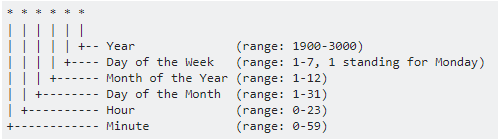
Cron Job setting
crontab -l
crontab -e

#/var/spool/cron/crontabs
-
Keep typing repeatedly
watch -n 5 {your_command}
-
curl 測試 connection
# test https
curl --insecure -v https://www.google.com 2>&1 | awk 'BEGIN { cert=0 } /^\* Server certificate:/ { cert=1 } /^\*/ { if (cert) print }'
-
Check server name by IP
nslookup {IP}
-
Prompt any key to close the screen (readline, read input)
read -n 1 -s -r -p "Press any key to close"

# input to varible
read varname
Jupyter
-
Enable interaction widgets
pip3 install ipywidgets
jupyter nbextension enable --py widgetsnbextension
-
Shortcut Key:
Command Mode (press Esc to enable)Enter
enter edit mode
Shift-Enter
run cell, select below
Ctrl-Enter
run cell
Alt-Enter
run cell, insert below
Y
to code
M
to markdown
R
to raw
1
to heading 1
2,3,4,5,6
to heading 2,3,4,5,6
Up/K
select cell above
Down/J
select cell below
A/B
insert cell above/below
X
cut selected cell
C
copy selected cell
Shift-V
paste cell above
V
paste cell below
Z
undo last cell deletion
D,D
delete selected cell
Shift-M
merge cell below
Ctrl-S
Save and Checkpoint
L
toggle line numbers
O
toggle output
Shift-O
toggle output scrolling
Esc
close pager
H
show keyboard shortcut help dialog
I,I
interrupt kernel
0,0
restart kernel
Space
scroll down
Shift-Space
scroll up
Shift
ignore
|
|
Edit Mode (press Enter to enable)Tab
code completion or indent
Shift-Tab
tooltip
Ctrl-]
indent
Ctrl-[
dedent
Ctrl-A
select all
Ctrl-Z
undo
Ctrl-Shift-Z
redo
Ctrl-Y
redo
Ctrl-Home
go to cell start
Ctrl-Up
go to cell start
Ctrl-End
go to cell end
Ctrl-Down
go to cell end
Ctrl-Left
go one word left
Ctrl-Right
go one word right
Ctrl-Backspace
delete word before
Ctrl-Delete
delete word after
Esc
command mode
Ctrl-M
command mode
Shift-Enter
run cell, select below
Ctrl-Enter
run cell
Alt-Enter
run cell, insert below
Ctrl-Shift-Subtract
split cell
Ctrl-Shift–
split cell
Ctrl-S
Save and Checkpoint
Up
move cursor up or previous cell
Down
move cursor down or next cell
Ctrl-/
toggle comment on current or selected lines
|
-
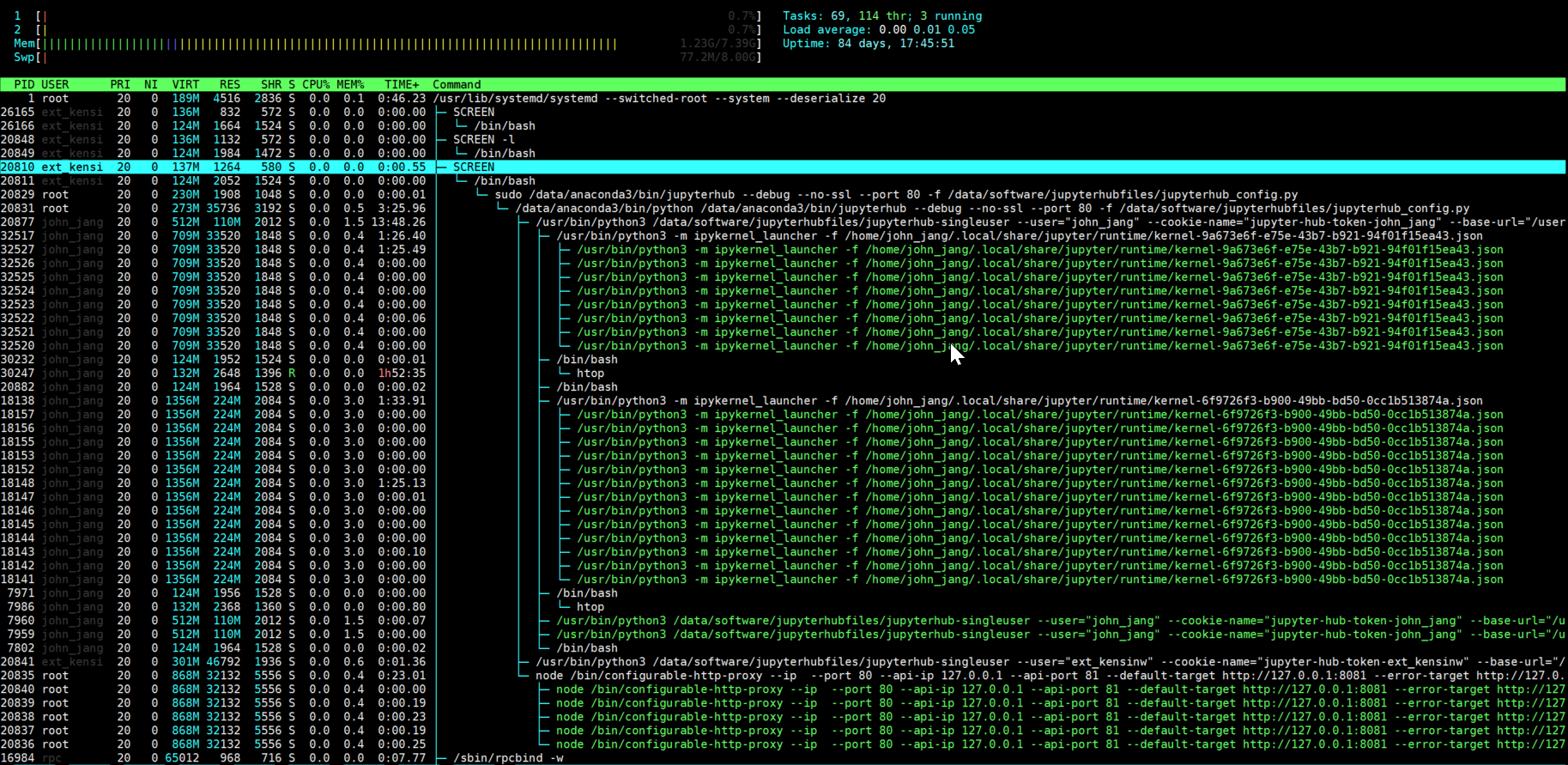
Run JupyterHub command
-
Debug with breakpoint
import pdb
pdb.set_trace()  # Put the breakpoint anywhere you want
          command list
h(elp) [command]
s(tep)
n(ext)
c(ont(inue))
w(here)
cl(ear) [filename:lineno | bpnumber [bpnumber ...]]
whatis expression
        ref: https://docs.python.org/3/library/pdb.html
-
Build a new systemd
vi /lib/systemd/system/kong.service

---- /lib/systemd/system/kong.service ---
[Unit]
Description= kong service
After=syslog.target network.target


[Service]
User=root
Group=root
Type=forking
ExecStart=/usr/local/bin/kong start -c /etc/kong/kong.conf
ExecReload=/usr/local/bin/kong reload
ExecStop=/usr/local/bin/kong stop

[Install]
WantedBy=multi-user.target
----

# enable auto-start
systemctl enable kong.service

# check status
systemctl status kong.service
Leave a Reply